

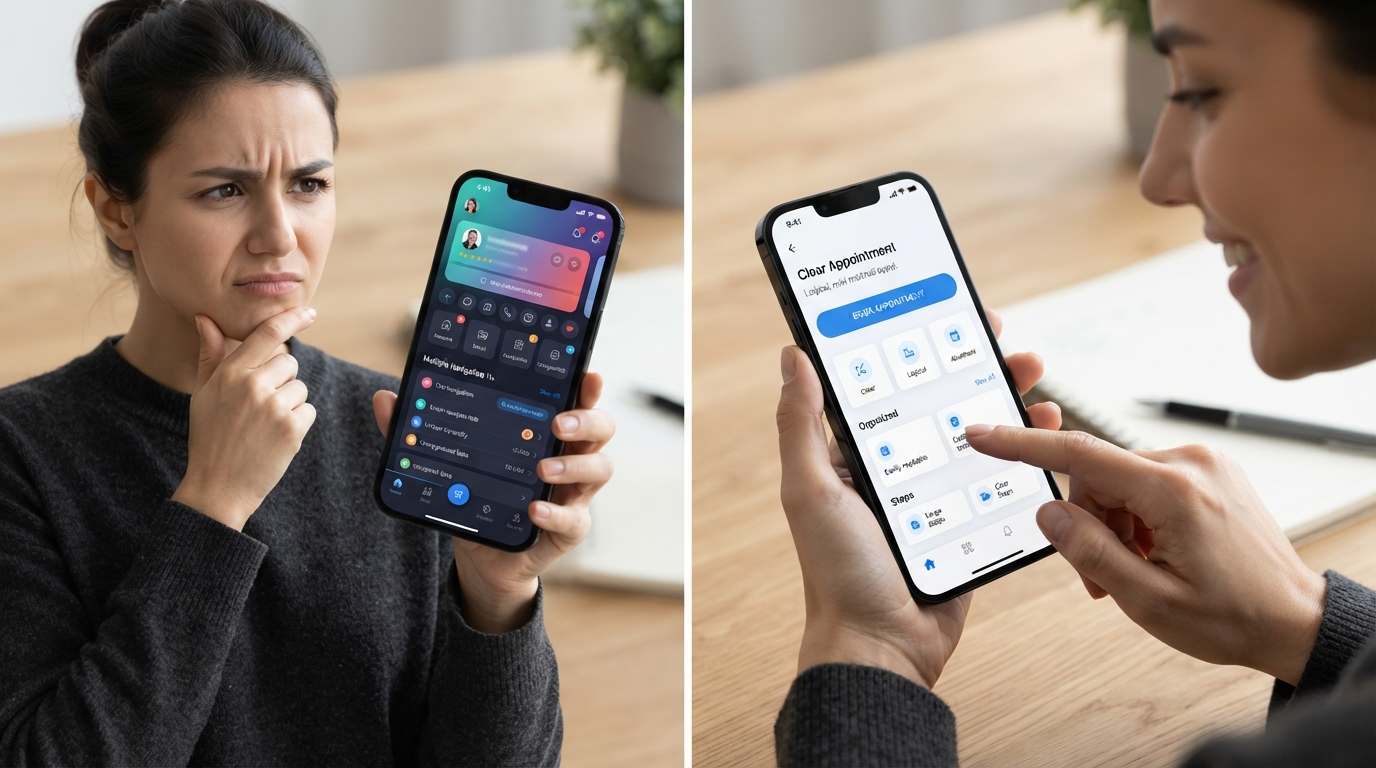
A Great UI Doesnt Fix a Bad User Experience
There is a common misunderstanding in app design:
If an app looks good, it must have good UX.
Not necessarily.
You can have beautiful colors.
Perfect spacing.
Smooth animations.
Modern typography.
Professional illustrations.
Beautiful buttons.
And still have an app that people don't enjoy using.
Why?
Because UI and UX are not the same thing.
UI is largely about the interface people see and interact with.
UX is about the overall experience they have while using the product.
And that difference matters.
What Is UI?
UI stands for User Interface.
It's the visual and interactive layer of a product.
UI includes things such as:
- Colors
- Typography
- Buttons
- Icons
- Cards
- Forms
- Spacing
- Layout
- Animations
- Visual hierarchy
- Components
A well-designed UI can make an application feel modern, professional, and trustworthy.
For example, imagine opening an app and immediately seeing:
- Clean typography
- Consistent spacing
- Clear buttons
- Professional colors
- Well-designed cards
- Smooth transitions
The app may look excellent.
But now comes the important question:
Can the user actually figure out how to use it?
That's where UX comes in.
What Is UX?
UX stands for User Experience.
It focuses on how people experience the product while trying to accomplish something.
UX considers questions like:
Can users find what they need?
Do they understand what to do next?
Can they complete a task easily?
Does the navigation make sense?
What happens when something goes wrong?
How many steps are required?
Does the entire journey feel natural?
A product can have beautiful UI and poor UX.
It can also have simple UI and an excellent UX.
The goal is to combine both.
Imagine a Beautiful App That Is Difficult to Use
Imagine you download a shopping app.
The home screen looks amazing.
The colors are excellent.
The product cards look beautiful.
The animations are smooth.
You find a product you like.
You want to buy it.
But then:
You can't find the "Buy" button.
You have to create an account before seeing basic information.
The checkout requires several unnecessary steps.
The address form is confusing.
The payment page doesn't clearly explain what happens next.
You finally complete the order.
But there is no obvious confirmation.
The app looked great.
But the experience was frustrating.
That's the difference between visual design and usability.
Users Don't Care How Beautiful Your Code Is
Users don't see your architecture.
They don't see your database.
They don't see your API.
They don't see your state management.
And most users don't care which framework you used.
They care about one thing:
Can I accomplish what I came here to do?
If someone opens a food delivery app, they want to order food.
If someone opens a banking app, they want to manage their money.
If someone opens a booking app, they want to make a booking.
If someone opens a business app, they want to complete a specific task.
Good UX keeps that goal in mind.
Start With the User's Goal
Before designing a screen, ask:
What is the user trying to accomplish?
For example, suppose you're building an appointment booking application.
The user's goal may be:
Find a service → Select a time → Book appointment → Receive confirmation
That's the journey.
Now the design should support that journey.
The user shouldn't have to:
Open menu → Search profile → Find services → Go back → Open another screen → Find availability → Enter unnecessary information → Try to understand confusing confirmation
The interface should make the primary journey clear.
Every Extra Step Matters
One of the easiest ways to create a frustrating experience is adding unnecessary steps.
Imagine a user wants to update their profile.
If the process requires:
- Open settings
- Open account
- Open profile
- Tap edit
- Confirm identity
- Open another page
- Edit information
- Save
- Confirm again
That may be too much for a simple task.
Sometimes additional security or confirmation is necessary.
But every step should have a reason.
A good UX designer asks:
Does this step actually help the user or the business?
If not, it may need to be reconsidered.
Navigation Should Feel Natural
Users shouldn't need a tutorial to understand basic navigation.
When they open an app, they should have a reasonable idea of where to go.
Good navigation creates a sense of direction.
For example:
Home
Search
Activity
Profile
These labels are usually easier to understand than creative names that require explanation.
Navigation should support the user's mental model.
If users expect something to be in one place, putting it somewhere completely unexpected creates friction.
Don't Make Users Guess
One of the biggest UX problems is uncertainty.
Imagine a button says:
Continue
But what happens when you tap it?
Maybe it submits the form.
Maybe it opens the next screen.
Maybe it starts a payment.
The user shouldn't have to guess.
Clear labels can make a major difference.
Instead of:
Continue
Sometimes something more specific is better:
Review Order
Book Appointment
Submit Application
Save Changes
The user understands what will happen next.
Forms Are a Common UX Problem
Forms are everywhere.
Signups.
Checkout.
Applications.
Contact forms.
Profiles.
Bookings.
And many businesses make them unnecessarily difficult.
Imagine a signup form asking for:
- Full name
- Phone
- Address
- Date of birth
- Company
- Job title
- Gender
- Profile photo
- Multiple preferences
before the user can even see the product.
Do you really need all of that immediately?
Maybe.
But maybe not.
Good UX asks:
What information do we actually need at this point?
If something isn't necessary during the first step, it might be better collected later.
Error Messages Matter
Users will make mistakes.
Networks will fail.
Servers will go down.
Payments can fail.
Passwords can be incorrect.
Forms can contain invalid information.
The question isn't whether errors will happen.
The question is:
How does your product handle them?
A poor error message might say:
"Something went wrong."
That's not very helpful.
A better message explains:
- What happened
- What the user can do
- Whether their information was saved
- What happens next
Good error handling can turn a frustrating situation into a manageable one.
Loading States Are Part of UX
Imagine you tap a button.
Nothing happens.
You wait.
Still nothing.
You tap again.
Now you aren't sure whether the app is working.
This is a UX problem.
A loading state can communicate that the application is processing the request.
For example:
Submitting...
Loading...
Processing payment...
Updating profile...
These small details help users understand what's happening.
Empty States Matter Too
What happens when there is no data?
A new user may have:
No messages
No orders
No saved items
No notifications
A blank screen doesn't tell the user much.
A useful empty state can explain the situation and provide a next action.
For example:
You don't have any saved items yet.
Browse our services to find something you may like.
The screen doesn't just say that there is nothing there.
It helps the user understand what they can do next.
Good UX Is About Context
Not every user is the same.
A first-time user may need more guidance.
An experienced user may want to move quickly.
A customer may need one set of features.
An administrator may need another.
A business app might have:
Customer
Employee
Manager
Administrator
Each role can have different goals.
Good UX considers those differences.
Don't Add Features Just Because You Can
Modern apps can contain a huge number of features.
But more features don't automatically mean a better product.
Sometimes adding another feature makes the product harder to understand.
Imagine a simple app that originally has:
Home → Search → Profile
Then over time it adds:
- Chat
- Stories
- Rewards
- Marketplace
- Groups
- Analytics
- Social feed
- AI
- Multiple dashboards
- Notifications
- Settings
- More settings
Eventually, the original purpose of the app becomes difficult to find.
Feature growth needs UX planning.
UX Starts Before the UI
A common mistake is opening a design tool and immediately creating screens.
Good UX work often starts earlier.
Before designing the final interface, you can define:
User Personas
Who are the users?
User Goals
What are they trying to accomplish?
User Flows
What steps do they need to take?
Information Architecture
How should information be organized?
Wireframes
What should the structure look like?
Prototypes
How will the flow work before development?
Only after these decisions does detailed visual design become much more meaningful.
Wireframes Can Save Development Time
A wireframe doesn't need beautiful colors.
It focuses on structure.
For example:
Home
↓
Service
↓
Details
↓
Booking
↓
Confirmation
You can review this flow before spending time designing every screen.
If something doesn't make sense, it's much easier to change a wireframe than redesign a fully developed application.
That's why UX planning can save time later.
User Research Matters
You may think you know what users want.
But assumptions can be wrong.
A business owner may think:
"Customers will definitely use this feature."
After testing, users may completely ignore it.
Or they may struggle with something the team thought was obvious.
User research helps uncover these problems.
It can include:
- Interviews
- Surveys
- Usability testing
- User observation
- Feedback analysis
- Prototype testing
You don't always need a massive research project.
Even simple conversations with real users can reveal valuable insights.
Test the Product With Real People
Before launching an application, give it to people who weren't involved in designing it.
Watch them use it.
Don't immediately explain what to click.
Instead, give them a task.
For example:
"Book an appointment for tomorrow afternoon."
Then watch.
Where do they hesitate?
Where do they tap incorrectly?
What do they ask?
What do they misunderstand?
These moments reveal UX problems that the development team may have stopped noticing.
Mobile UX Is Especially Important
Mobile screens are small.
Users often interact with them using one hand.
They may be:
- Walking
- Sitting in a car
- Waiting somewhere
- Multitasking
- Using poor internet
- In bright sunlight
This changes how interfaces should be designed.
Buttons need appropriate touch areas.
Important actions should be easy to reach.
Content shouldn't feel overcrowded.
Forms shouldn't require unnecessary typing.
Mobile UX needs to consider the real environment in which people use the product.
Performance Is Also UX
UX isn't only about visual design.
A beautiful screen that takes five seconds to load can still create a poor experience.
Users experience:
Loading time
Network failures
Slow animations
App crashes
Delayed API responses
as part of the product.
That's why UX and engineering need to work together.
A designer can create a beautiful experience.
A developer needs to make that experience work reliably.
Accessibility Is Part of Good UX
A product should be usable by as many people as reasonably possible.
That means thinking about:
- Text readability
- Contrast
- Touch targets
- Screen readers
- Clear labels
- Keyboard interaction where relevant
- Motion preferences
- Different device sizes
Accessibility isn't just an extra feature.
It is part of designing a usable product.
UI and UX Need to Work Together
The best results happen when UI and UX aren't treated as separate disconnected activities.
UX defines the journey.
UI communicates that journey visually.
For example:
UX:
The user needs to find a service quickly.
UI:
Use clear hierarchy, obvious categories, and an easy-to-find search function.
UX:
The user needs to understand the next step.
UI:
Make the primary action visually clear.
UX:
The user needs confidence after completing an action.
UI:
Show a clear confirmation state.
The two work together.
A Beautiful Interface Still Needs a Purpose
It's easy to get distracted by visual trends.
Glass effects.
Gradients.
Animations.
Large typography.
Micro-interactions.
They can all be useful.
But they should support the experience.
If an animation makes a process slower, it may not be worth it.
If a fancy interaction makes navigation confusing, simplify it.
If a visual effect makes text harder to read, remove it.
Design should serve the user.
How GoTech Studio Approaches UI/UX
At GoTech Studio, UI/UX isn't only about making screens look modern.
Our approach can include:
User Research
Understanding who the product is being built for.
Wireframes
Planning the structure before detailed visual design.
Responsive Design
Creating layouts that work across different screen sizes.
Modern UI
Building clean and consistent visual systems.
Dark Mode
Designing appropriate experiences for both light and dark interfaces.
Animations
Using motion where it improves feedback and interaction.
Smooth Navigation
Making the user journey clear and easy to follow.
The goal is simple:
Build an interface that looks good and feels easy to use.
A Simple UX Checklist
Before launching your app, ask:
Can a new user understand the main purpose quickly?
Can users find the important features?
Is the primary action obvious?
Are forms simple enough?
Are error messages helpful?
Are loading states clear?
Are empty states useful?
Does navigation make sense?
Can users complete important tasks without unnecessary steps?
Does the app work well on different screen sizes?
Have real users tested it?
If several answers are "no," the problem may not be the visual design.
It may be the experience.
Final Thoughts
A beautiful interface can attract attention.
But a good user experience is what helps people stay, understand, and accomplish what they came to do.
The best products don't force users to figure everything out.
They guide them.
They reduce unnecessary steps.
They provide useful feedback.
They make important actions clear.
And they solve the user's problem without creating new ones.
So the next time someone says:
"Our app needs a better design."
Don't only ask:
"How should it look?"
Also ask:
"How should it feel to use?"
Because a great UI can make people notice your product.
A great UX can make them want to keep using it.