
Docker has become essential for modern development. It eliminates "works on my machine" problems by packaging applications with their dependencies. This tutorial takes you from zero to deploying containerized applications.
What Is Docker?
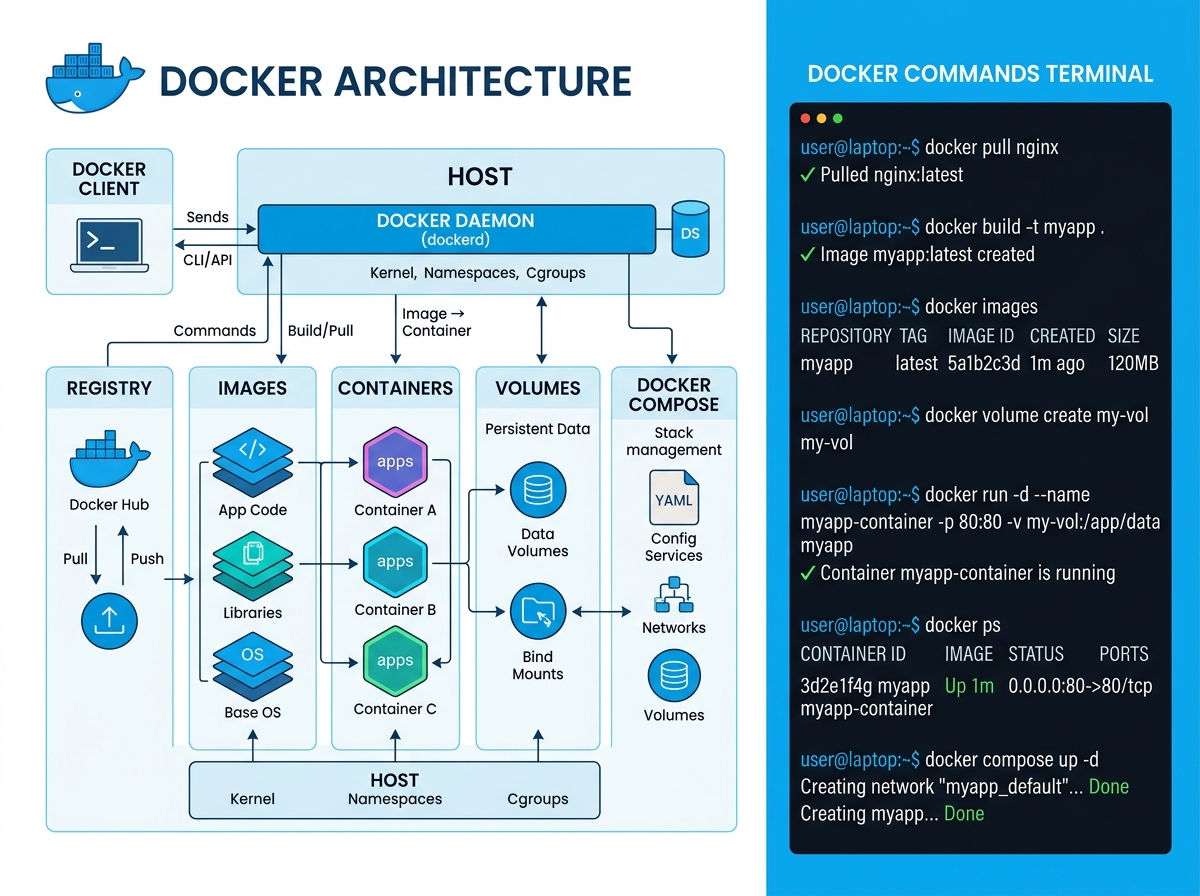
Docker is a platform for developing, shipping, and running applications in containers. Containers are lightweight, portable, and isolated environments that include everything your application needs to run.
Step 1: Installation
Windows/Mac: Download Docker Desktop from docker.com. It includes Docker Engine, Docker Compose, and Kubernetes.
Linux (Ubuntu):
bash
sudo apt update
sudo apt install docker.io docker-compose
sudo systemctl start docker
sudo systemctl enable docker
sudo usermod -aG docker $USER
Log out and back in for group changes.
Verify installation:
bash
docker --version
docker-compose --version
Step 2: Your First Container Run a simple container:
bash
docker run hello-worldThis downloads the hello-world image and runs it. The output explains Docker's workflow.
Run an interactive Ubuntu container:
bash
docker run -it ubuntu bashYou're now inside an Ubuntu container. Type
exit to leave.Step 3: Working with Images Images are read-only templates. Containers are running instances.
List local images:
bash
docker imagesDownload the official Nginx image:
bash
docker pull nginx:latestRun Nginx:
bash
docker run -d -p 8080:80 --name my-nginx nginx-
-druns in detached mode (background) -
-p 8080:80maps host port 8080 to container port 80 -
--namegives the container a name
Visit
http://localhost:8080 to see Nginx running.Step 4: Dockerfile Basics Create a simple Node.js application. In your project directory, create
Dockerfile:dockerfile
# Base image
FROM node:20-alpine

# Working directory
WORKDIR /app

# Copy package files
COPY package*.json ./

# Install dependencies
RUN npm install

# Copy application code
COPY . .

# Expose port
EXPOSE 3000

# Start command
CMD ["node", "server.js"]
Build the image:
bash
docker build -t my-node-app .Run it:
bash
docker run -d -p 3000:3000 my-node-appStep 5: Docker Compose Docker Compose manages multi-container applications. Create
docker-compose.yml:yaml
version: '3.8'

services:
  app:
    build: .
    ports:
      - "3000:3000"
    environment:
      - NODE_ENV=production
      - DB_HOST=db
    depends_on:
      - db
    restart: unless-stopped

  db:
    image: mysql:8.0
    environment:
      MYSQL_ROOT_PASSWORD: rootpassword
      MYSQL_DATABASE: myapp
      MYSQL_USER: appuser
      MYSQL_PASSWORD: apppassword
    volumes:
      - db_data:/var/lib/mysql
    restart: unless-stopped

  nginx:
    image: nginx:alpine
    ports:
      - "80:80"
    volumes:
      - ./nginx.conf:/etc/nginx/nginx.conf
    depends_on:
      - app
    restart: unless-stopped

volumes:
  db_data:
Start everything:
bash
docker-compose up -dStop everything:
bash
docker-compose downStep 6: Data Persistence Containers are ephemeral—data disappears when they stop. Use volumes for persistence:
bash
# Create a volume
docker volume create my-data

# Use it in a container
docker run -d -v my-data:/data nginx
Bind mounts link host directories to containers:
bash
docker run -d -v $(pwd)/html:/usr/share/nginx/html nginxStep 7: Networking Docker creates default networks, but custom networks offer better control:
yaml
networks:
  frontend:
    driver: bridge
  backend:
    driver: bridge
    internal: true
Services in
backend can only communicate with each other, not externally.Step 8: Production Best Practices
Multi-stage builds reduce image size:
dockerfile
# Build stage
FROM node:20-alpine AS builder
WORKDIR /app
COPY package*.json ./
RUN npm ci
COPY . .
RUN npm run build
# Production stage
FROM node:20-alpine
WORKDIR /app
COPY /app/dist ./dist
COPY /app/node_modules ./node_modules
CMD ["node", "dist/server.js"]Security:
-
Run containers as non-root users
-
Scan images with
docker scanor Trivy -
Use specific image tags, not
latest -
Keep base images updated
Step 9: Deployment Push to Docker Hub:
bash
docker login
docker tag my-app username/my-app:1.0
docker push username/my-app:1.0
Deploy to cloud platforms:
-
AWS ECS/EKS: Managed container orchestration
-
Google Cloud Run: Serverless containers
-
Azure Container Instances: Simple container hosting
-
DigitalOcean App Platform: Easy deployment from Docker Hub
Step 10: Debugging View logs:
bash
docker logs container-nameExecute commands in running containers:
bash
docker exec -it container-name bashInspect container details:
bash
docker inspect container-nameConclusion Docker simplifies development, testing, and deployment. Start with single containers, graduate to Docker Compose for multi-service apps, and eventually explore Kubernetes for orchestration at scale.